Decks and cards
Organise flashcards into decks, write basic, reversed and cloze cards, and make cards straight from your notes.
Flashcards live in decks. A card has a front (the question or prompt) and a back (the answer). Engram shows you each card again just before you’re likely to forget it. That’s spaced repetition.
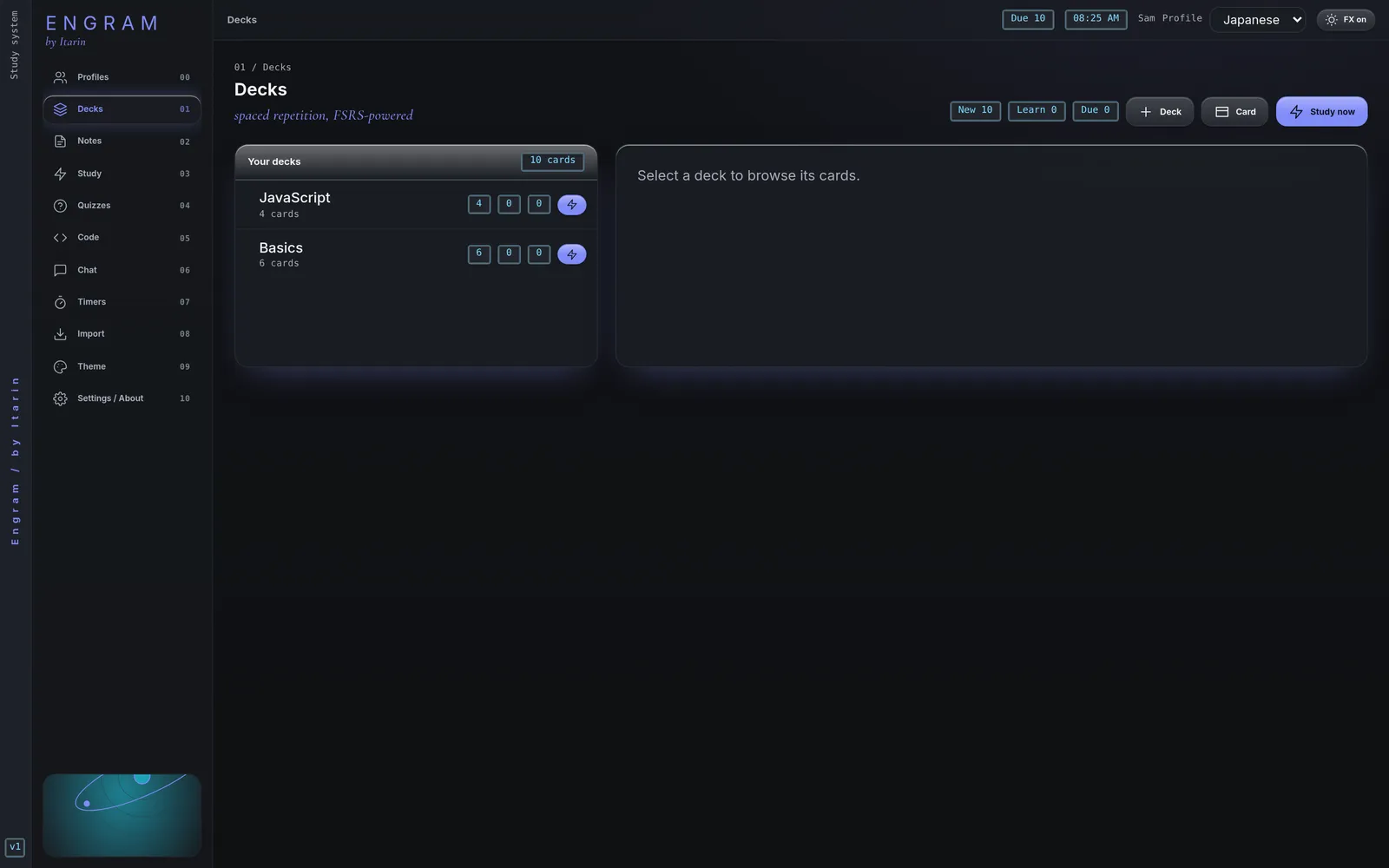
Decks
- Press Deck to create one.
- Put
::in a name to nest decks, likeJapanese::N5 Vocab, the same way Anki does. Studying a parent deck includes all of its sub-decks. - Click a deck to see its cards, search them, rename the deck, delete it, or start a Quiz from it.
- The three numbers next to each deck are new, learning and due cards.
Deleting a deck deletes its cards and their review history, and can’t be undone.
Each deck brings in up to 20 new cards a day. Reviews of cards you’ve already started are never capped. The limit isn’t adjustable in the app yet.
Card types
| Type | What it makes |
|---|---|
| Basic | One card: front, then back. |
| Basic + reversed | Two cards: front to back, and back to front. Good for vocabulary. |
| Cloze deletion | Hides part of a sentence for you to recall. |
Cloze cards
Wrap the part to hide in {{c1::...}}:
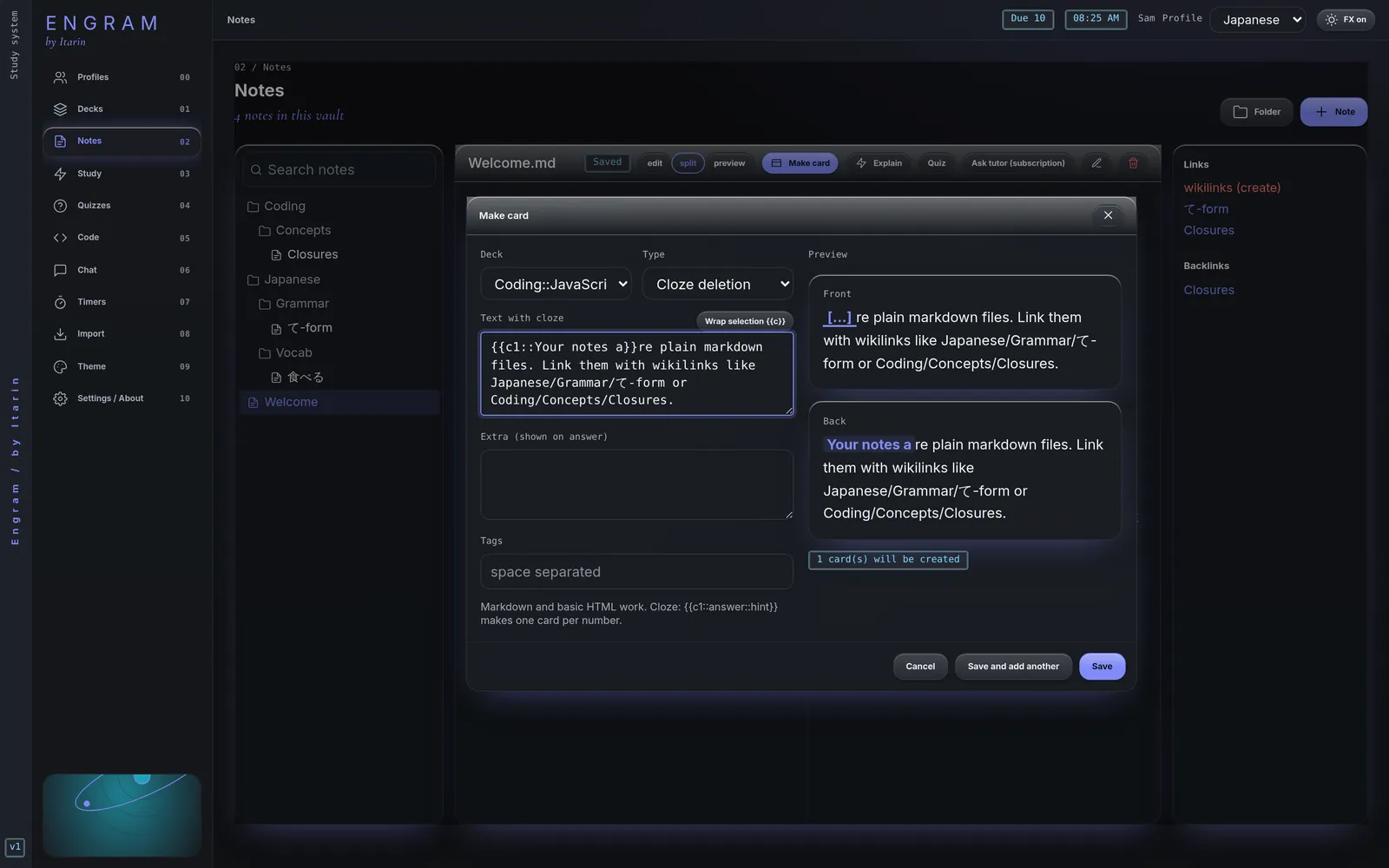
The {{c1::mitochondria}} is the {{c2::powerhouse}} of the cell.Each number becomes its own card, so this example makes two. Add a hint after a second ::, like {{c1::mitochondria::organelle}}. When writing a cloze card, select a word in the text box and press Wrap selection to wrap it for you.
Card text can use markdown and basic HTML. Tags are optional words separated by spaces.
Make a card from a note
- In Notes, select the words you want to remember.
- Press Make card, or Ctrl + Shift + C (Cmd + Shift + C on a Mac).
- The selection becomes the front. Switch Type to Cloze deletion and Engram turns the whole sentence into a cloze card with your selection hidden.
- Choose a deck (or + New deck…) and press Save, or Save and add another.
Engram remembers the last deck you used. Cards made from a note keep a link to it, so while studying you can press Source to jump back to the note.
Add a card by hand
Press Card on the Decks page. The editor is the same as above, with a live preview of both sides.
Manage cards
In a deck’s card list, each card shows its state (NEW, LEARN, REVIEW, RELEARN, or HOLD if suspended) and its next due date. The buttons on each card:
- Edit changes its text and tags.
- Suspend takes it out of study until you unsuspend it.
- Reset progress makes it a new card again.
- Delete removes it.
Other ways to get cards: import from Anki or a spreadsheet, save a missed quiz question as a card, or save a tutor reply as a card.