Notes
Write markdown notes in folders, link them with wikilinks, and start from Japanese, coding or study templates.
On this page
Notes are where you write down what you’re learning. Every note is a plain markdown (.md) file in your profile’s folder, so you can also open them in any text editor, or in Obsidian.
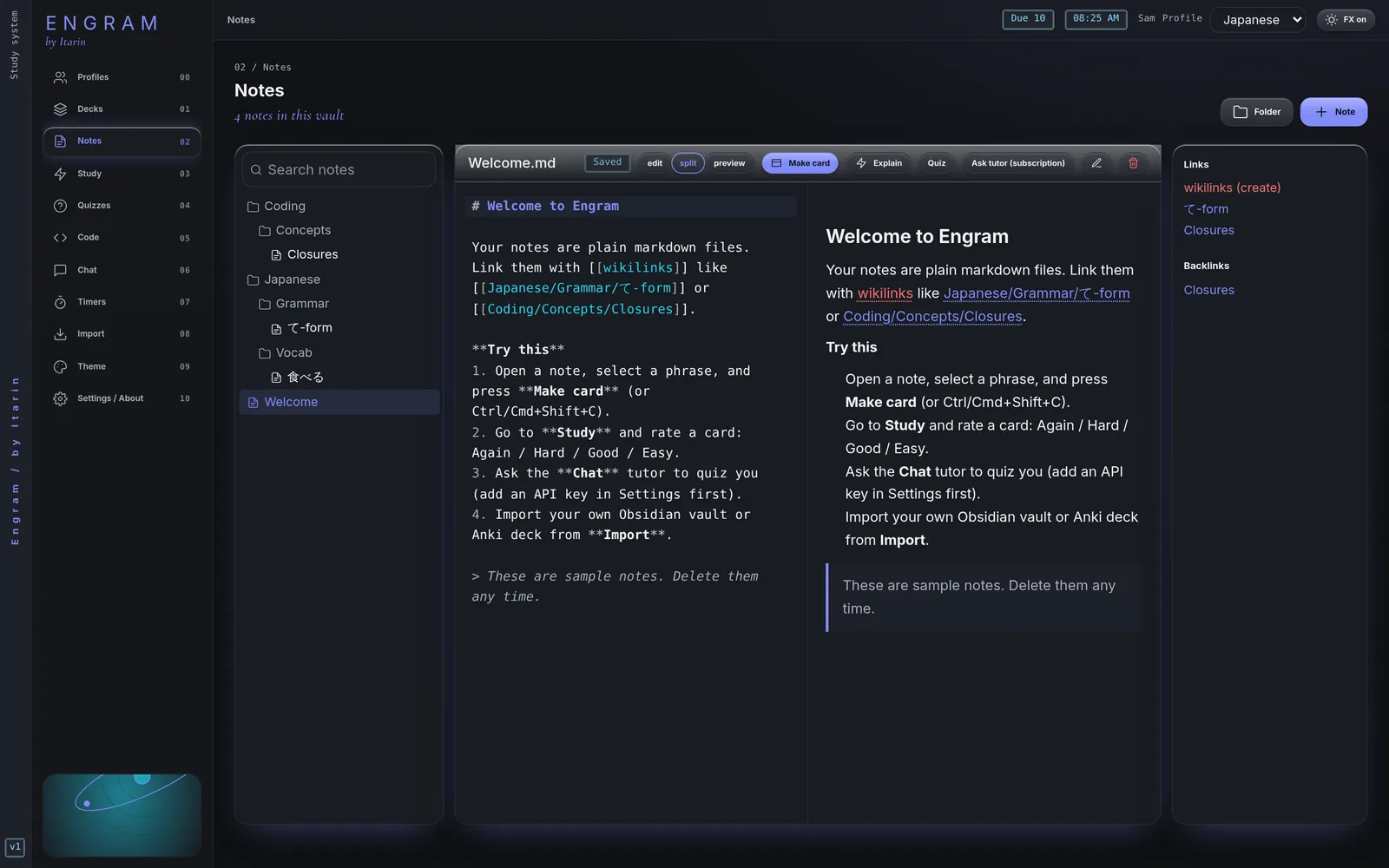
The Notes screen
- Left: your folders and notes, plus a search box. Search looks at note names and their text once you type two or more characters.
- Middle: the open note. Switch between edit, split (editor and preview side by side) and preview.
- Right (on wide windows): the note’s outgoing Links and its Backlinks, meaning other notes that link to this one.
Notes save automatically as you type. The small label next to the title shows Saving, then Saved.
Create a note
Press Note, type a title, and pick a template and a folder. Folders are created for you if they don’t exist.
| Template | Starts in |
|---|---|
| Blank note | the vault’s top level |
| Daily study log | Daily |
| JP vocab entry | Japanese/Vocab |
| JP grammar point | Japanese/Grammar |
| JP kanji | Japanese/Kanji |
| Coding concept | Coding/Concepts |
| Code snippet | Coding/Snippets |
| Bug journal | Coding/Bugs |
| Lecture / reading notes | School |
Press Folder to create an empty folder. You can type a path with slashes, like Japanese/Grammar.
Link notes together
Type two square brackets and a note name, like [[Particles]]. As you type, Engram suggests note names. In the preview, links are clickable.
- A link to a note that doesn’t exist yet shows in red. Click it and Engram creates that note for you, in the same folder as the one you’re in.
- You can link to a heading (
[[Particles#は]]) or show different text ([[Particles|particle notes]]), the same way Obsidian does.
Rename, move and delete
- The pencil button renames or moves a note. Type a new path, like
Japanese/Grammar/Particles.md. Leave Update [[links]] in other notes ticked and Engram rewrites links in your other notes to match. - The bin button deletes the note file. Cards you made from it keep working.
Buttons on every note
- Make card: turns the text you’ve selected into a flashcard. See Decks and cards.
- Explain: a free, offline summary of the note. See Explain.
- Quiz: makes a quiz from this note. See Quizzes.
- Ask tutor: opens the tutor chat with this note (and any selected text) attached. This needs the tutor add-on. See AI tutor.
Markdown basics
Notes use standard markdown: # for headings, **bold**, *italic*, - for lists, and backticks for code. Images in your vault can be shown with Obsidian-style embeds like ![[diagram.png]]. Embedding another note (![[Other note]]) shows a link to it rather than its contents.